It is 10:47 PM. Someone lands on your website, wants to know if you are open on Sunday and how much a consultation costs. There is no one to ask, so they press the back button and pick the next result on Google. You never find out they existed.
A chatbot fixes that - but only if it actually gets onto your website. Most business owners we speak to are not stuck on whether they want one. They are stuck on "where do I paste this code?" and "will I break my site?" This guide answers both, platform by platform, in plain language.
Short answer: you add an AI chatbot to a website by pasting one line of code just before the closing </body> tag - or, on WordPress, by installing a plugin and pasting your Bot ID. With FiveMinChat the whole process, including training the bot on your website, takes about 5 minutes and is free to start.
Before you start: what you need
- Admin access to your website - the WordPress dashboard, or the login for Shopify, Wix, Squarespace, Webflow or Blogger. If an agency or freelancer built your site, this guide gives you the exact instruction to forward to them.
- A website with some real content - your services, prices, timings, location. The bot learns from what is on your site, so the more useful your pages, the better the answers.
- A free FiveMinChat account - no credit card. Want to see your site as a chatbot first? The free live demo builds one from your URL in about 3 minutes without signing up.
You do not need to know how to code, hire a developer, or write questions and answers by hand.
Step 1 - Train the bot on your website
Sign up with your email and your website domain (for example yourclinic.in). Then open Knowledge Base in the dashboard and click Ingest My Entire Website. FiveMinChat reads your pages and turns them into the bot's knowledge - usually in a minute or two.
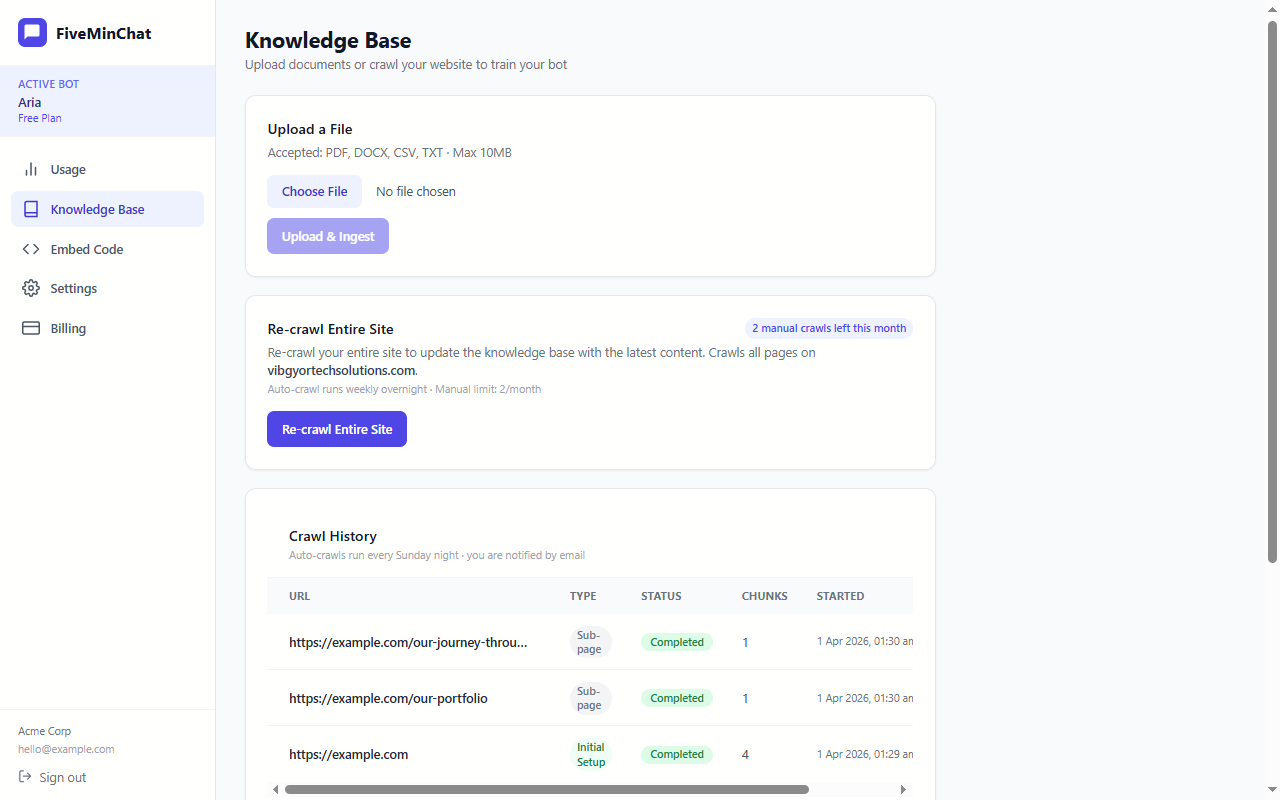
Have a price list, menu, brochure or course PDF that is not on your website? Upload it in the Upload Files tab. The bot answers from it just like a web page.
Step 2 - Fill the gaps and test
Here is the mistake almost everyone makes: they skip this step, and then the bot cannot answer "where are you located?"
Many websites keep the address, phone number and opening hours inside an image, a Google Map or the footer - places a crawler cannot always read. The fix takes two minutes. Go to Settings and paste the basics into the System Prompt:
Now open the dashboard preview and ask the five questions your customers ask most. Preview chats never count towards your monthly messages, so test as much as you like. Try one in Hinglish too - "kal open hai kya?" - the bot replies in the visitor's own language.
Not sure your website has enough content? Paste your URL into the free demo and chat with the result before you sign up. If the answers are good, you are 3 steps away from going live.
Try the Free DemoStep 3 - Copy your embed code
Click Embed Code in the dashboard sidebar. You will see two things:
- The script tag - for every platform except WordPress. It looks like this:
- Your Bot ID - a long string like
d5106878-660a-4c99-.... WordPress users only need this.
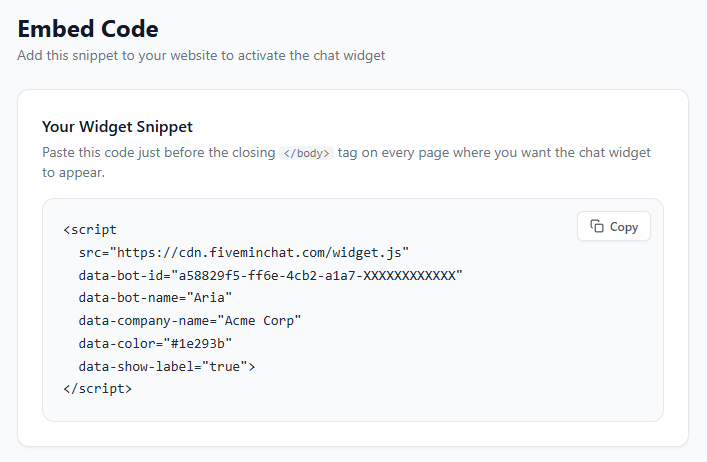
That defer at the end matters: it tells the browser to finish loading your page first and only then load the chat button. Your website does not get slower for visitors.
Step 4 - Paste it on your platform
Jump to your platform. Each one takes under two minutes.
WordPress (easiest - no code at all)
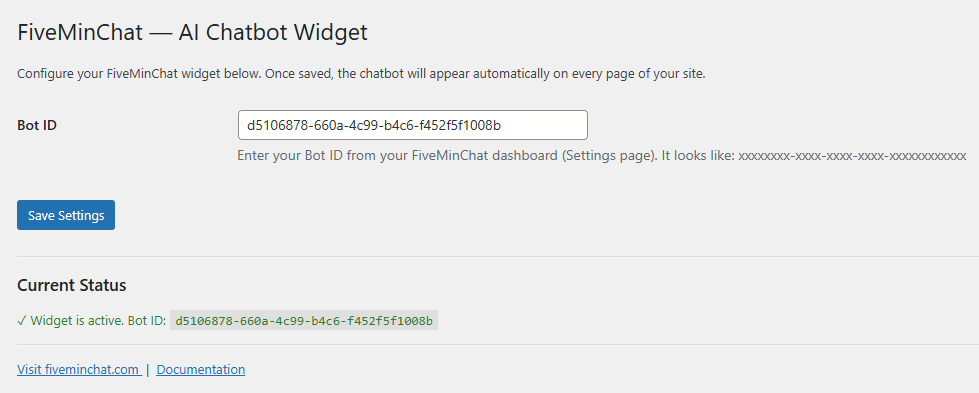
- In WordPress admin, go to Plugins › Add New Plugin and search for FiveMinChat.
- Click Install Now on "FiveMinChat - AI Chatbot Widget", then Activate.
- Go to Settings › FiveMinChat, paste your Bot ID and click Save Settings.
Done. The plugin is in the official WordPress.org directory and works with any theme, Elementor and WooCommerce. More detail on our WordPress chatbot plugin page.
Shopify
- Go to Online Store › Themes, click the three dots next to your live theme and choose Edit code.
- Open
theme.liquidunder Layout. - Find
</body>(Ctrl+F helps), paste the script tag on the line just above it, and click Save.
Running a store? Our Shopify chatbot guide for India covers product questions, COD and delivery queries in more depth.
Wix
- Open your site dashboard and go to Settings › Custom Code (under Advanced).
- Click Add Code, paste the script tag, choose All pages and place it in Body - end.
- Click Apply.
Wix only allows custom code on a Premium plan with a connected domain.
Squarespace
- Go to Settings › Advanced › Code Injection.
- Paste the script tag into the Footer box and click Save.
Code Injection is available on Squarespace's paid plans that include custom code.
Webflow
- Open Site Settings › Custom Code.
- Paste the script tag into Footer Code, save, then Publish the site.
Custom code runs only on a published site with a paid site plan, not in the Designer preview.
Blogger
- Go to Theme, click the arrow next to Customize and choose Edit HTML.
- Find
</body>, paste the script tag just above it and save.
Plain HTML, PHP, React or a custom site
Paste the script tag just before </body> in your main layout or footer file so it appears on every page. In React, Next.js or Vue, put it in the root HTML template rather than inside a component.
Someone else manages your website?
Forward them this one sentence along with the script tag: "Please add this script just before the closing body tag on all pages of our website." Any developer will understand it and it takes them less time than reading this paragraph.
Step 5 - Check it is live
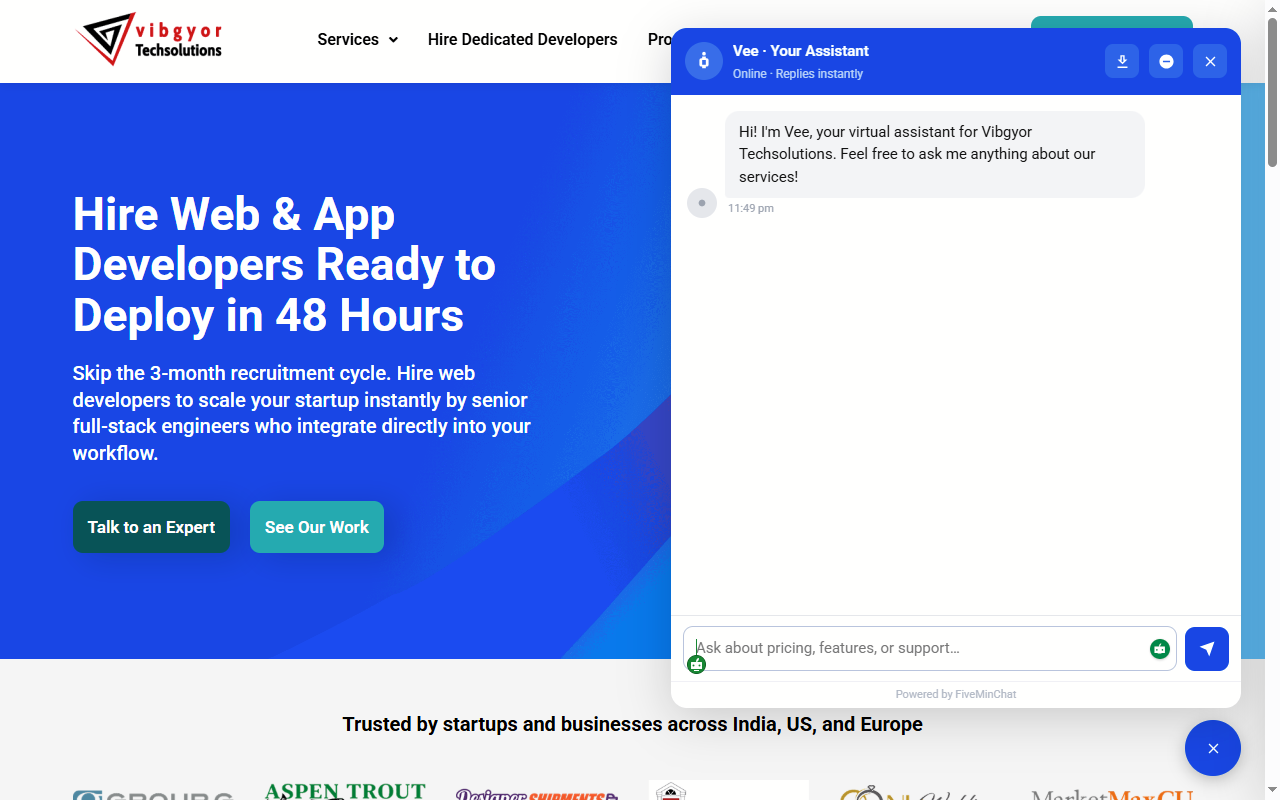
- Open your website in a normal browser window. A chat button should appear in the bottom-right corner.
- Click it and ask a real question - "What are your timings?"
- Type "My name is Rahul, call me on 9876543210". Within a minute, the lead should arrive at your notification email.
- Check on your phone too. The widget adjusts to mobile screens automatically.
Chatbot not showing? Quick fixes
- Site not republished. Wix, Webflow and Squarespace need you to save or publish after adding code.
- Cache. If you use a caching plugin (WP Rocket, LiteSpeed, W3 Total Cache) or Cloudflare, clear the cache and reload in a private window.
- Domain mismatch. The widget only appears on the domain set in your FiveMinChat Settings - this stops anyone copying your bot onto their site.
www.does not matter, but a staging or different domain will not show it. - Plan restriction. Free plans on some website builders block custom code. The WordPress plugin route has no such limit.
- Code pasted in the wrong place. It must be inside the page, before
</body>- not inside a text block where it shows up as visible text.
Still stuck? Email hello@fiveminchat.com with your website address and we will help you set it up.
Your first week: make it actually useful
Installing the chatbot takes 5 minutes. Making it great takes another 15, spread over your first week:
- Read the conversations. The Conversations page shows every question visitors asked. Any answer that was weak tells you exactly what to add to your System Prompt or website.
- Add your WhatsApp number. In Settings, add it and visitors get a "Continue on WhatsApp" button - useful for customers who prefer to finish the conversation there. Our chatbot vs WhatsApp Business guide explains how the two work together.
- Tune the opening questions. The three suggested questions under the greeting are generated from your content. Edit them in Settings to match what people really ask.
- Write a greeting that invites leads. "Ask me anything about our services, or leave your number and we will call you back" works better than a plain "Hi!".
- Watch the funnel. The Usage page shows how many visitors saw the chatbot, opened it and asked a question. That number is your proof the bot is earning its place.
How much does it cost?
Starting is free. FiveMinChat's free plan has no time limit and no card: 100 visitor messages a month, 15 pages of training, lead capture and Hindi replies included. Paid plans start at Rs 499 a month in INR via Razorpay when you need more messages or pages. See exactly what the free plan covers in our free AI chatbot guide, or compare plans on the pricing page.
Frequently asked questions
Do I need coding skills to add a chatbot to my website?
No. On WordPress you install a plugin and paste your Bot ID. On Shopify, Wix, Squarespace, Webflow or Blogger you paste one line of code into a settings box. Nothing else needs to change on your site.
Will a chatbot slow down my website?
The FiveMinChat script loads with the defer attribute, so the browser finishes loading your page first and only then loads the chat button. Your page content is not held up by the chatbot.
Can I add a chatbot to my website for free?
Yes. FiveMinChat has a free plan with no time limit and no credit card: an AI chatbot trained on up to 15 pages of your website with 100 visitor messages a month, lead capture and Hindi replies included.
Why is the chatbot not showing on my website?
Check three things: the code or plugin is installed and the site is republished, the domain in your FiveMinChat Settings matches the site the widget is on, and your website builder plan allows custom code. Clear your browser or site cache and reload.
Can I add the same chatbot to more than one website?
Each bot is tied to the domain set in its Settings, so it answers on that site. For a second website, create a separate bot trained on that site's content.
Does the chatbot work on mobile?
Yes. The chat button and window adapt to phone screens automatically, and visitors can tap Continue on WhatsApp if you add your WhatsApp number in Settings.
Your website could be answering visitors tonight
Train the bot on your site, paste one line of code and start capturing leads 24/7. Free forever, no credit card.
Free plan available · No credit card · Cancel anytime